- Home
- Users & Science
- Support and Infrastructure
- Computing
- Two-factor authentication
Two-factor authentication
To improve the security of all ESRF accounts, two-factor authentication has been implemented. This measure is mandatory and applies to all users.
If you have already set up two-factor authentication on your ESRF account, see the FAQ for instructions on adding a new device.
If this is your first time accessing your ESRF account, you will need your smartphone AND your computer for the configuration.
If you have an iPhone or a Mac, you can follow this procedure instead.
If you don’t have a smartphone or you use a hardware device (e.g. YubiKey), click here.
Step 1: on your smartphone
- You will need to use an OTP (one-time password) app.
- If you don’t already have one, download “FreeOTP Authenticator”:
|
|
Open the App Store (iPhone) or Play Store (Android) on your mobile phone. Download the app “FreeOTP Authenticator”. |
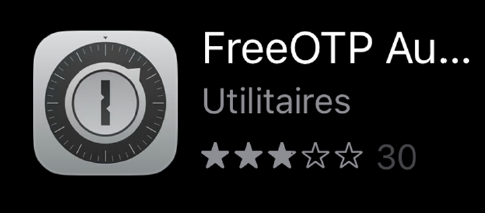
- For Android users only: open the app, swipe right and click on “Get started”. Set a password and click on “DONE”.
- Your smartphone is now ready.
Step 2: on your computer
- Open Keycloak: https://websso.esrf.fr/auth/realms/ESRF/account/#/
- If this is your first time accessing the account, you'll see the page below.
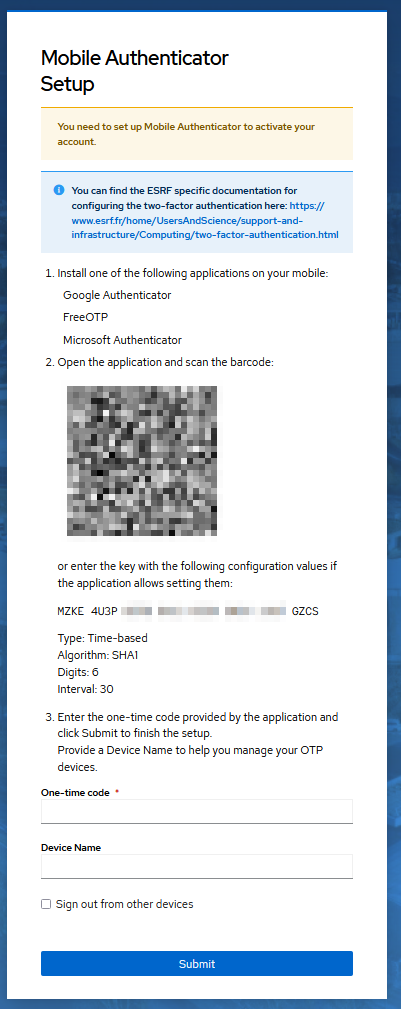
- On your phone,
- open your FreeOTP Authenticator app.
- for Android users only, click on the “+” icon.
- Select the QR code icon.

- Authorize access to your camera if the app requests it.
- Scan the QR code visible on your computer screen with your phone camera. A token named “European Synchrotron Radiation Facility” will appear. Your app is now ready.
- Click on “European Synchrotron Radiation Facility” on the smartphone to get your code. Be aware that the code regenerates every 30 seconds (you can view the remaining time in the icon).
- On your computer,
- fill in the code from your app in the field “One-time code”.
- enter the name of your smartphone in the “Device name” field.
- Click on “Submit”.
The configuration is now complete!
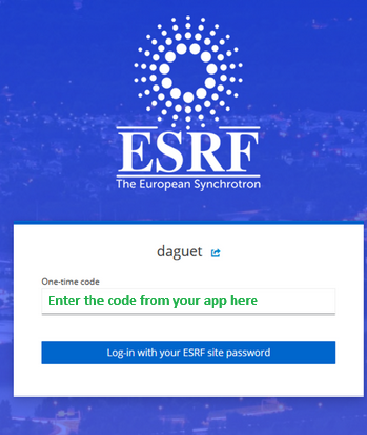
From now on, when you see the page below when logging into ESRF applications, open your smartphone app, generate a code, and enter it in the field:
FAQ
1 - I need to configure a new device because I have a new phone and I'm unable to log in. What can I do?
- Click on this link: https://websso.esrf.fr/auth/realms/ESRF/account/#/
- Click on “log in with your ESRF site password”.
- Enter your username.
- Then, instead of entering your password, click on “Forgot password?”.
- You should receive an email. Click on the link in the email.
You will be automatically redirected to a page where you can configure OTP on a new device. Please follow the procedure again to configure your new device.
2 - How come the one-time code I enter is invalid?
Check if the time on the device where your OTP app is installed is the exact same as the one of your network (down to the minute). If it isn't, please sync it, then try again.
If it is the same time, then it's possible that you took too long to follow the steps and that the “seed” expired.
In that case you need to delete the existing token from your app:
- If you have FreeOTP on an Android smartphone:
Open FreeOTP and tap the clock next to the token in the app. You should now see a check mark instead of the clock. You can now delete it by pressing the bin icon at the top right-hand corner of your screen.
- If you have FreeOTP on an iPhone:
Open FreeOTP and swipe the token right to delete it.
Now that you don't see a code in your app, all you need to do is start again from this point onward in the procedure:
Step 2: on your computer
Open Keycloak: https://websso.esrf.fr/auth/realms/ESRF/account/#/
3 - Why choose two-factor authentication to improve the security of ESRF accounts?
Two-factor authentication is a simple system to secure user access. If your password is stolen, your account remains inaccessible without the generated code. It can be used offline and is relatively easy to set up.
Any issue during the configuration? Please call our helpdesk +33 (0)4 76 88 24 24 (Monday to Friday 8:00-12:00 and 13:00-17:00 Paris time) and tell us where in the procedure you are stuck and what is the error message that you get.
partners


European Synchrotron Radiation Facility - 71, avenue des Martyrs, CS 40220, 38043 Grenoble Cedex 9, France.